

PeerDoc Student Guide
Welcome to the PeerDoc Student Guide, your comprehensive resource for navigating and maximizing your experience with PeerDoc. This guide is designed to help you understand the essential components of the PeerDoc platform, ensuring you can manage your coursework effectively and efficiently. Scroll or click below to navigate through the guide.
01
Selecting Your PeerDoc Section
If you are enrolled in multiple PeerDoc sections, upon logging in, the Section Selection window will appear. To begin working, simply click on the PeerDoc section you wish to access and then click the "Select" button at the bottom of the window. This will open your To-Do List, where you can view and manage your assignments.
If you are enrolled in only one PeerDoc section, you will be taken directly to your To-Do List upon logging in.


02
Signing Up with PeerDoc
Upon being enrolled in a course section by your instructor, you will receive a welcome email from support@rampantstrategy.com. This email is crucial as it contains instructions based on whether you are new to the system or a returning user:
-
New Users: The email includes a unique link to complete your account registration. It’s important to follow this link to set up your account and start accessing course materials.
-
Existing Users: You will be notified about being added to a new section. Simply log in at https://app.rampantstrategy.com to view your updated course list.
03
If You Lose Your Registration Email
If you did not receive the registration email, check your junk and spam folders as emails can sometimes be redirected there.
-
If you can’t find it, you can reset your password using the "Forgot Your Password?" option on the login page.
-
For any unresolved issues, please don’t hesitate to contact support@rampantstrategy.com for further assistance.
Navigating Your To-Do List
When you log in to PeerDoc, your To-Do list will automatically appear. This list is organized to show all pending assignments, sorted by their due dates for your convenience. To view details or start an assignment, simply click on the assignment in the list. This feature is designed to help you keep track of your tasks and manage your time effectively.
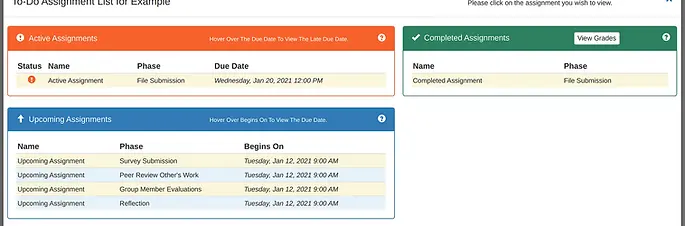

You can easily return to your To-Do list at any time to check for new assignments or upcoming deadlines. Simply click on the "To-Do List" link located on the left side of the screen. This feature ensures you can quickly navigate back to your list of tasks no matter where you are within the PeerDoc platform, helping you stay organized and on top of your coursework.
04
Understanding the Phases of the Assignment
Each assignment within PeerDoc is structured into distinct phases to streamline the process and enhance clarity. Here's what you need to know about each phase to successfully navigate your assignments:
-
File Submission / Survey Submission - During this initial phase, you may be required to submit a file or complete a survey. This can be done either individually or as part of a group, depending on the assignment's setup. This is your opportunity to provide any input that will later be reviewed by your peers or evaluated by your instructor.
-
Evaluation - The evaluation phase follows submission and can involve several activities:
-
Peer Review Other's Work: You will assess the work submitted by your peers based on criteria provided by the instructor.
-
Group Member Evaluations: If applicable, you will evaluate the contributions of each member of your group. This helps ensure that all participants are contributing fairly to group tasks.
-
Reflection: This part of the evaluation may ask you to reflect on your own work and the feedback received from peers, which is crucial for your learning and development.
-
Phase Timing and Dashboard Indicators
Each phase is time-bound, with clear start and end times displayed on each panel within your student dashboard. It's important to complete each phase within the allotted time to ensure you don’t fall behind. The dashboard is designed to help you keep track of your progress:
-
Active Phase Indicator: The panel of the currently active phase will be highlighted in blue.
-
Attention Needed: If a required action in a phase has not been completed, that panel will turn orange, signaling that your attention is needed.
By understanding and managing these phases, you'll be better equipped to succeed in your coursework. Remember, only one phase is active at a time, so focusing on the current requirements will help you efficiently progress through each assignment.
05
Assignment Submission Process
After completing your registration and logging into PeerDoc, you will be directed to the student dashboard. This is your central hub for accessing and managing your assignments. PeerDoc facilitates two main types of submissions:
-
File Submission
-
Survey Submission

Successfully submitting your assignments in PeerDoc involves a few key steps. Here's a detailed guide to help you navigate the process from start to finish, ensuring your submissions are timely and correctly formatted.
Step-by-Step Assignment Submission Guide:
-
Review Instructions and Materials: Begin by carefully reviewing the "Instructions" provided by your instructor. These may include specific guidelines or requirements for your assignment. Check any "Uploaded Instructor Files" associated with the assignment. These files can include templates, reference materials, or additional instructions essential for completing your assignment correctly.
-
Prepare Your Assignment: Complete your assignment within the timeframe outlined in the instructions. It’s important to start early to ensure you have ample time to review and adjust your work based on the assignment requirements.
-
Upload Your Assignment: Once your assignment is ready, go to the "File Submission" panel on your PeerDoc dashboard.
Click the "Upload File" button to select and upload your file from your computer.
4.
5.
6.
Review Uploaded Content: After uploading, your file will automatically open in one of our online file viewers. This step allows you to verify the contents of your file. Carefully check that the entire document has uploaded correctly and that all content is accurate. This is crucial to ensure that your submission reflects your intended work.
Correcting Submission Errors: If you discover that the wrong file was uploaded or the file appears corrupt, you have the option to delete your submission and re-upload the correct file. You can make changes to your submission as often as needed until the file submission phase ends. This flexibility allows you to ensure your final submission is exactly as you intend.
Handling Blind Assignments: For assignments designated as blind, note that the file name will be automatically changed to a generic identifier. This modification ensures anonymity and fairness in the peer review process. Make sure your name or any identifying information is not included within the document itself to maintain the integrity of the blind review process.


After uploading your assignment file(s), it's important to confirm that everything has been submitted correctly:
Check the Dashboard Status:
-
Once you've verified your upload and submitted the required number of files, the "File Submission" panel on your dashboard will turn blue, indicating that your submission meets the requirements.
If the panel remains orange, this means you have not yet met the file submission requirements. Continue to upload until all required files have been successfully submitted.
06
Evaluations Phase in PeerDoc
When the evaluations phase of your assignment begins, your dashboard will update to reflect this new stage. Here’s what to expect:
-
Updated Dashboard View: Your dashboard will display the evaluations panel in orange, signaling that it's time to start reviewing peer submissions or assessing group member contributions.

Accessing Evaluations: Click on the "Evaluations" button on your dashboard. A modal window will appear displaying the tasks you need to complete by the due date.
Peer Review Other's Work: Click "Add Review" to start a peer review. You'll receive a fellow student's assignment to evaluate based on specific questions provided by your instructor.
Group Member(s) Evaluation: Assess and rate your group members' performance. Fill out the questions honestly — remember, only your instructor will see your responses.
Reflection: Reflect on your own performance by answering a set of questions about your contributions and learning in the assignment.
Submitting Evaluations: After completing all sections, click the "Submit" button. A confirmation message will show once your answers are saved on our server, confirming that your evaluations have been successfully submitted.
During the evaluations phase, you are responsible for providing feedback through several different components. Here's how to proceed:
.webp)

During the evaluation phase in PeerDoc, you can modify and resubmit your responses until the phase ends. If you encounter a "Submit Failed" message, check your internet connection and attempt to submit again. Once the evaluation phase concludes, your dashboard will update, indicating that all evaluations are complete and no further modifications are allowed. This ensures your final inputs are securely saved and accounted for.

07
Grades in PeerDoc
When your assignment is finished, it will be graded by your instructor or teaching assistant. As soon as your grade is published, you can view it in the "Grade" panel on your PeerDoc dashboard. This allows you to track your performance and receive feedback on your submissions promptly.
To view additional feedback on your assignment, click the "Details" button located in the "Grading" panel on your PeerDoc dashboard. This will show you any comments your instructor or teaching assistant may have added. If there are no comments displayed, it means that no additional feedback was provided for that particular submission.

08
Email Notifications
Rampant Strategy ensures that you are kept informed every step of the way. By default, you will receive email notifications for key activities:
-
Submission Confirmation: Whenever you submit a file or survey through PeerDoc, you'll receive an email confirming that your submission was successfully received.
-
Grade Publication: Notifications are also sent out when your instructor publishes grades for assignments you've completed.
If you prefer not to receive these notifications, you can easily opt-out:
-
Simply click on the User Symbol in the upper right corner of your PeerDoc dashboard.
-
Select User Settings from the dropdown menu.
-
From here, you can adjust your preferences to disable email notifications.
This feature allows you to customize how you receive updates, ensuring that you stay informed in a way that suits your needs.
